Computer Applications I :: Lessons :: Spreadsheet Formulas
Math Functions
It is important to know the common math functions, what they do, and how to use them in Excel or Google Sheets. Knowing these basics will help you immensely when it comes to more complicated formulas.
    Addition: num1 + num2
    Subtraction: num1 - num2
    Multiplication: num1 * num2
    Division: num1 / num2
    Parenthesis: Anything surrounded by ( ) will be computed first
Parenthesis are very important when creating a formula. They force Excel/Sheets to calculate certain functions first. For example, 30 + 15/3 is not the same as (30 + 15)/3. The first formula will equal 35 while the second will equal 15. This is because the division is calculated first in the first formula while the addition is calculated first in the second formula.
Comma Style and Decimals
- Create your spreadsheet like the one below:
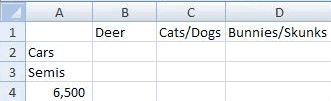
Don't type the comma in 6,500 yourself. You can set the style of the cell using Excel or Google Sheets.
Excel Instructions
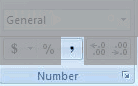
- Select Cell A4 with the number 6500 in it.
- Go to Home>Number>Comma Style.
- Click the button to add commas and two decimal places to the number.
Google Sheets Instructions
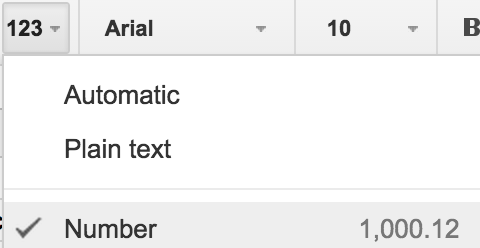
- Select Cell A4 with the number 6500 in it.
- Click on the More Formats button.
- Select "Number" to add commas and two decimal places to the number.
You can use the previous steps anytime you want to add commas and two decimal places to a number. In this case, however, we do not want the decimal places. We will use another button to remove them.
Excel Instructions

- Highlight Cell A4.
- Go to Home>Number>Decrease Decimal.
- Press the button two times to remove both decimal places.
Google Sheets Instructions
- Highlight Cell A4.
- Click the Decrease Decimal Places button two times to remove both decimal places.
Decrease Decimal can be used to remove decimals from a single number, but you can also select a group of numbers and use it. If the numbers have a different amount of decimal places it will stop removing them from numbers that have no decimals remaining. You can also use Increase Decimal to add decimal places to numbers.
Cell References
You can enter formulas by looking at the cell you are typing in, but it is much easier to use the Formula Bar located just above your spreadsheet. This section gives you much more room to edit your formula.
Another important key about formulas is that you must type = before you start entering your formula. The = tells Excel or Google Sheets that you are about to enter a formula. Without the = the program will think you are just typing text or a number.
- Click in Cell B2.
- Type "=".
- Click in Cell A4.
- Type "*30%".
- Press "Enter".
Your answer should be 1,950. Notice that after you clicked in Cell A4 the program added A4 to the formula. This is known as a cell reference. You will see why cell references are important momentarily.
- Click in Cell D2.
- Type "=".
- Click in Cell A4.
- Type "/9".
- Press "Enter".
You should get 722.22 for this formula.
- 18. Click in Cell C2.
- 19. Type "=".
- 20. Type "(B2 + D2)/2".
- 21. Press "Enter".
Your answer should be 1336.1111 for this formula. Notice that you can type cell references in addition to clicking on the cells themselves. Cell references save you time by allowing you to change one number instead of multiple numbers. If we hadn't used cell references and needed to change 6,500 to a different number we would have to change the number in multiple formulas. Since we did use cell references we can change 6,500 and all of the formulas will automatically reflect the change.
- Click in Cell A4.
- Change 6,500 to 7,000.
Notice that all of the formula results changed as soon as you pressed "Enter." It is very important that you always use cell references in your spreadsheets. Now see if you can create the following formulas based on the words given. The total refers to Cell A4. You can check your answers below.
- In Cell C3:
- Multiply the total by 65%
- In Cell B3:
- Divide the total by 7 and take half of it
- In Cell D3:
- Find the difference between the sum of the total and 4 and half the total
Inserting Rows and Columns and Showing Formulas
If you ever need to insert a new row or column it is pretty simple. Although there are many ways to do it one of the easiest ways is to right-click on the number of the row that will be after the new row and choose Insert to add a new row. You can do the same thing when inserting new columns.
You can also see all of the formulas you have typed in Excel without having to look at them all individually.
- Hold down the Ctrl key
- Press the ` key (to the left of the 1)
After you press "`" you should be able to see all the formulas. You can press Ctrl-` again to hide them.
Printing Spreadsheets
Every once in a while you may find the need to print a spreadsheet. As often as possible you will want to make your spreadsheets fit on a single page. Although our example spreadsheet doesn't actually require these steps it is good practice to do it on all of your spreadsheets.
Excel Instructions
- Go to Page Layout>Scale to Fit.
- Change both the width and the height to 1 page.
Google Sheets Instructions
- Go to File>Print.
- Choose "Fit to width" to resize the spreadsheet to fit the page.
After completing the above steps, Excel will attempt to fit your entire spreadsheet on one page. It does this by shrinking the text size. If your spreadsheet is more horizontal than vertical you can also try the next step.
Excel Instructions
- Go to Page Layout>Page Setup>Orientation.
- Choose "Landscape" to print the spreadsheet horizontally instead of vertically.
Google Sheets Instructions
- Go to File>Print.
- Choose "Landscape" to print the spreadsheet horizontally instead of vertically.